
Desktop Bonsai Towns Manual
PLAYER MANUAL · ENGLISH
How to play Desktop Bonsai Towns, from the start screen to the bonsai shelf.
This manual covers the Cyberpunk world. Words in quotation marks are the game’s own English text, so you can match them with what you see on screen.
Before you start
Desktop Bonsai Towns runs on 64-bit Windows with Direct3D 11. You play it with a mouse and keyboard; controllers are not supported. The interface is in Japanese, English and Simplified Chinese (there is no voice). The first launch picks the language of your system, and you can change it in Settings.
- Time
- The town grows only while the game is running. Nothing happens while it is closed, and nothing catches up when you come back. It keeps growing while the window sits behind other apps.
- Speed
- There is no fast-forward and no pause. A bonsai takes several hours of real time to finish.
- The clock
- The date and time in the bottom-right corner (for example “2084/05/22 14:07”) is the in-game clock, not real time. The result screen’s “Time (in-game)” and achievements such as “One Week” and “One Month” count in-game days too.
- Saving
- The game saves by itself every 60 seconds and when you quit. There is one save slot. Pick “Continue” on the start screen to carry on.
The start screen
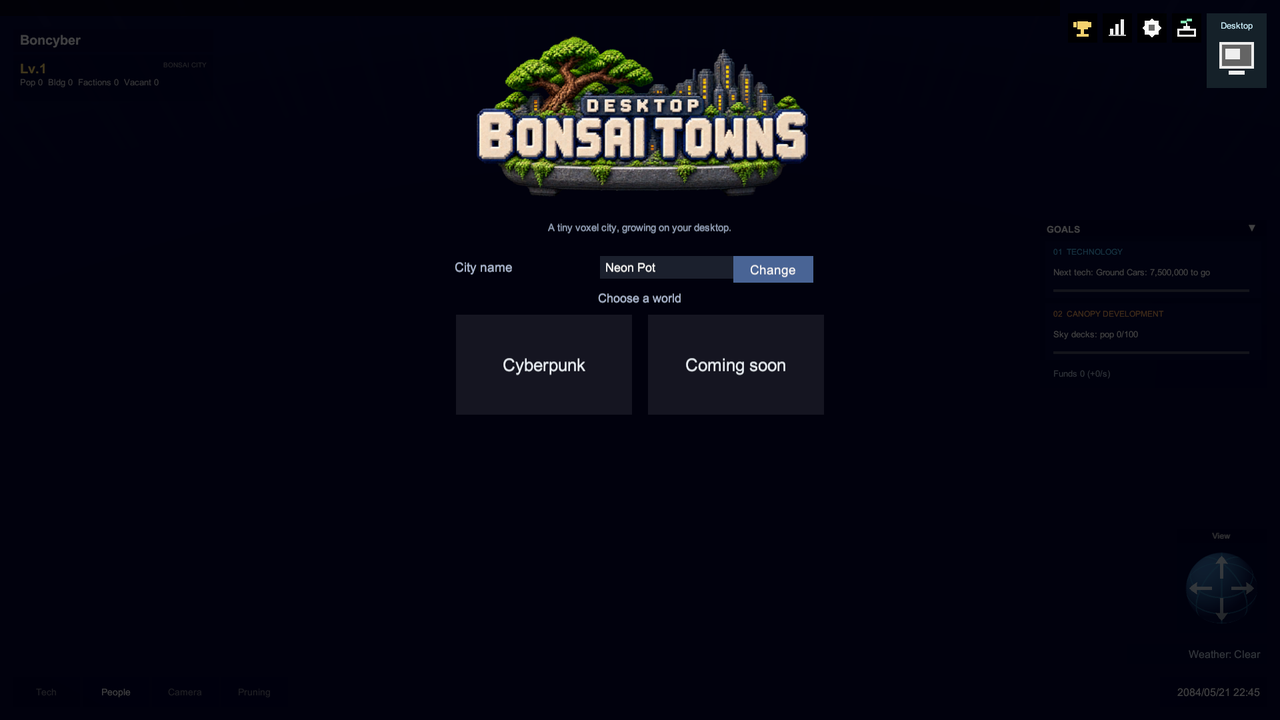
- City name
- Pick a preset with “Change” (“Neon Pot”, “Cyber Bonkei”, “Nightglow Pot” or “Mega Bonsai”) or type a name of your own. You can rename the town later in Settings: “Type anything, any time”.
- Choose a world
- “Cyberpunk” is the world in this release. The other slot reads “Coming soon”.
- Choose a pot
- A pot you have not unlocked yet shows “Locked” and what opens it: an amount of carried-over funds or a number of completed trees. “Buy” unlocks it, and the pot you are using shows “In use”.
- Continue
- “Continue” resumes your saved town; the button shows the town’s name and population.
- Start fresh
- “Start fresh with these settings” begins a new town. “Starting fresh keeps your permanent unlocks and trophies”; if you have a save, the screen adds “The current quick save will be overwritten, though”.
- Auto-start
- The start screen goes ahead on its own after 10 seconds (“Auto-start in 10s”). Touch anything and the countdown stops: “Auto-start stopped — pick one below”. Settings can turn it off with “Auto-start on title screen: On / Off”.
You do not choose the shape of the tree. Each run picks one by itself, and shapes you have not collected yet come first.
Reading the screen
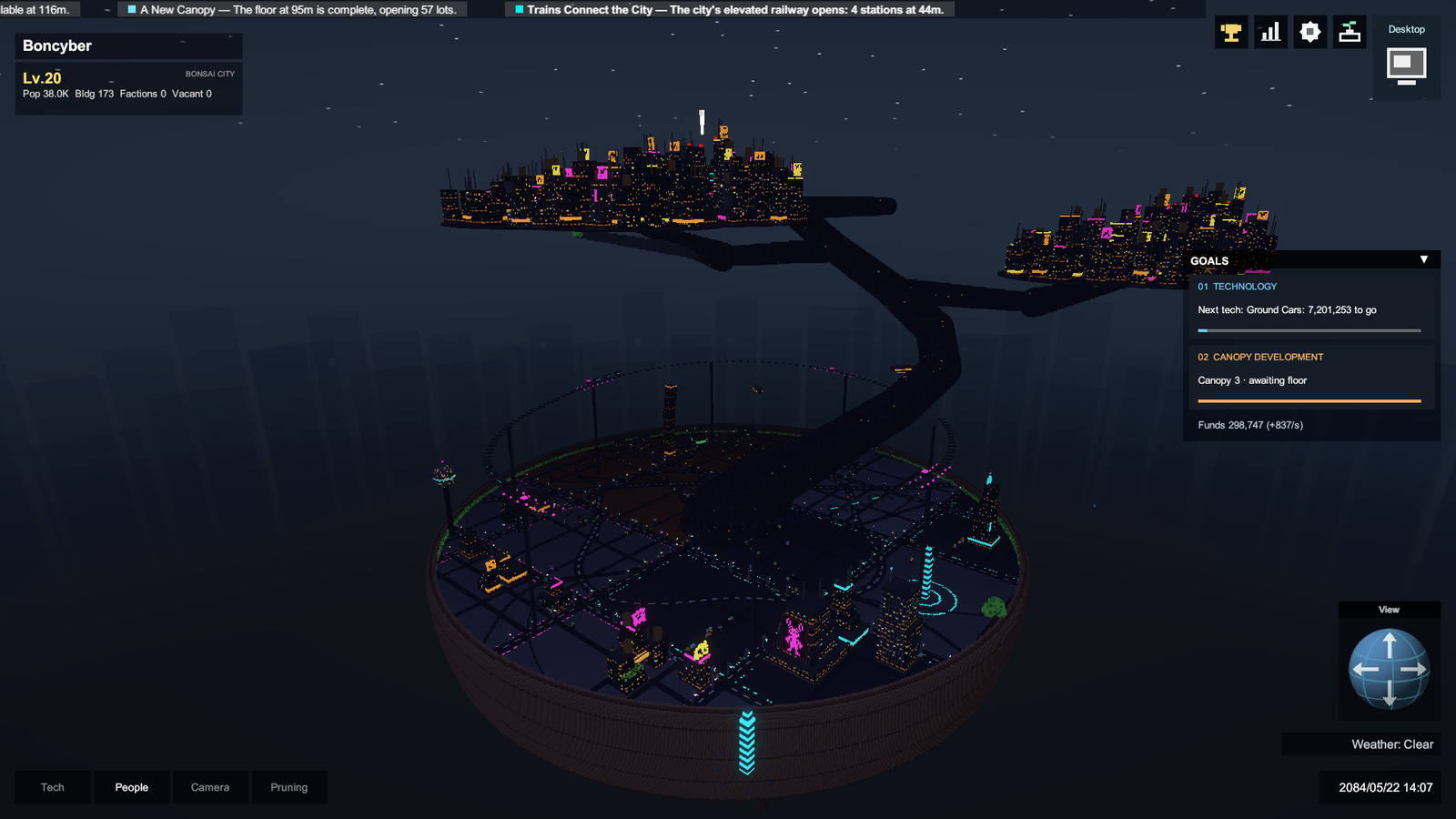
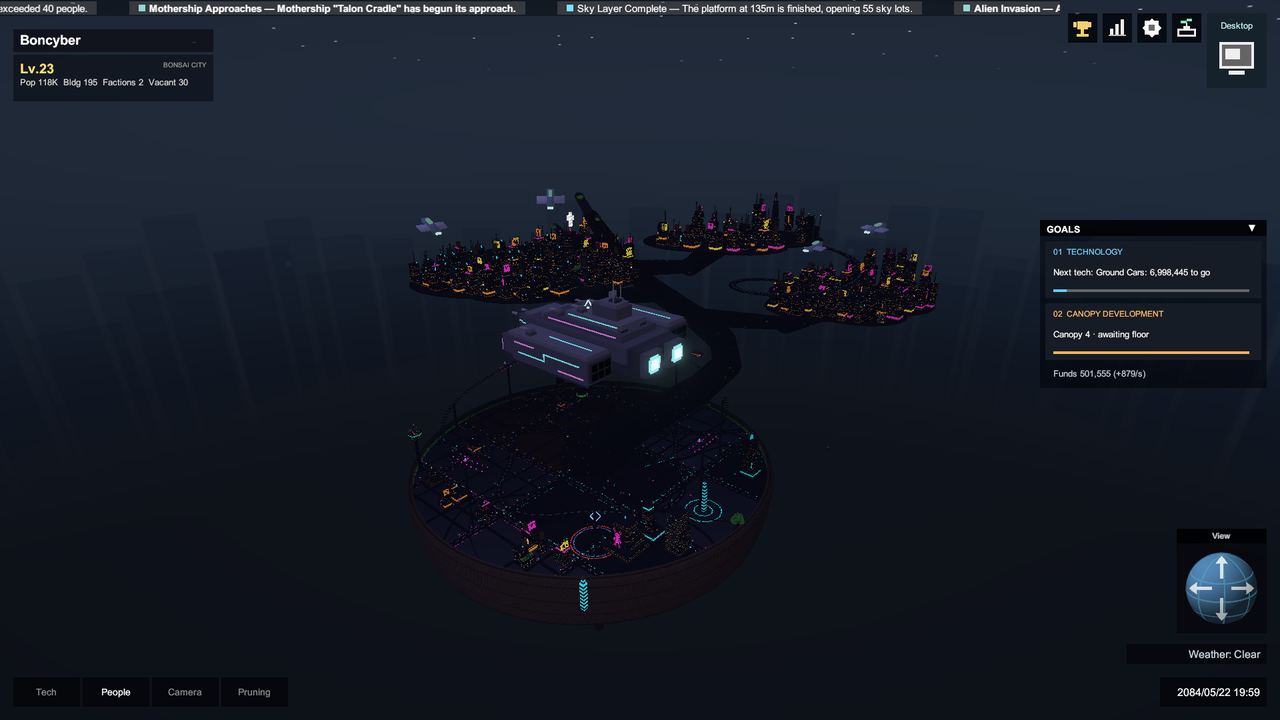
- Top edge · News ticker
- Events scroll across from right to left, for example “Trains Connect the City — The city’s elevated railway opens: 4 stations at 44m.” Click one to fly the camera to where it happened.
- Top left · Town panel
- The town’s name and level, with “Pop”, “Bldg”, “Factions” and “Vacant”: population, buildings, factions and empty lots. The level (“Lv.20”) comes from the population, and each level takes about 1.47 times as many people as the one before.
- Top right · Icons
- From the left: “Achievements” (the trophy), “Statistics” (the bar chart), “Settings” (the gear) and the “Bonsai shelf”, then the large “Desktop” icon for desktop mode.
- Right · GOALS
- “01 TECHNOLOGY” shows how far you are from the next unlock (“Next tech: Ground Cars: … to go”, or “ready!” once you can afford it). “02 CANOPY DEVELOPMENT” follows how the canopy is coming along. Your “Funds” and income per second are at the bottom. ▼ folds the panel.
- Bottom right · View, weather, clock
- The “View” ball turns the camera (see Moving the camera). Below it are the weather, such as “Weather: Clear”, and the in-game date and time.
- Bottom left · Tabs
- “Tech” opens the unlock tree, “People” the residents, “Camera” the cinematic and photo modes, and “Pruning” the shears.
- In the town · Event pins
- Markers where something has happened. Click one to go there.
The “Statistics” window shows “Population and funds over the last 30 minutes”, homes and buildings, what the town is made of and what is going on right now, your permanent unlocks, and the balance of the factions. Its labels are icons: point at one to see its name.
Windows such as Statistics and Goals move when you drag their title bar, and they open in the same place next time.
Moving the camera
- Left drag
- Pan. Up and down on the screen move up and down in the world. A press that moves less than 8 pixels counts as a click.
- Middle drag, or W A S D
- Pan across the ground: up and down move the view farther or nearer.
- Right drag
- Rotate.
- Mouse wheel
- Zoom.
- View ball
- Drag the ball, or click or hold its arrows, to rotate. Press it twice to go back to the starting angle. Drag its title bar to move it.
- Auto-rotate
- On the Camera tab (and on the pot buttons in desktop mode): “Start auto-rotate”, “Stop auto-rotate”, “Direction: Left / Right” and a speed from 2 to 30°/s (6°/s at first). It holds still while you turn the camera by hand, and your settings are kept for the next launch.
- Click a resident
- The camera follows them. Pan to let go.
A left click selects what is under the pointer when you let go of the button, as long as you pressed in the same place. If you dragged, nothing is selected.
How a town grows
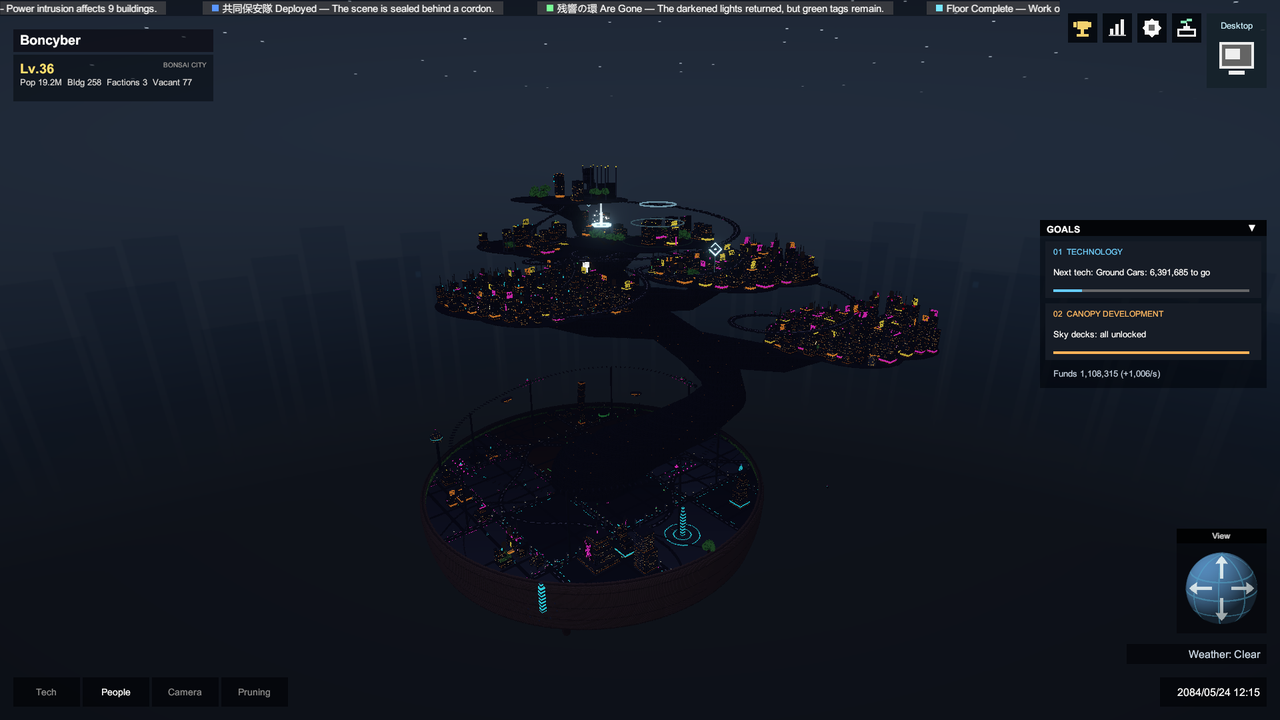
A voxel bonsai grows in a round pot, in real time, over several hours. Buildings go up by themselves along the trunk and the branches, and sky bridges link the branches together. You never place a building yourself.
Tree shapes
- Formal upright
- Informal upright
- Slanting
- Literati
- Broom
- Windswept
- Cascade
- Semi-cascade
- Twin trunk
- Triple trunk
- Clump
- Sinuous
- Raft
- Forest
- Rock planting
Each tree takes one of the traditional bonsai shapes above. Now and then a “Wild” one appears instead, such as “Wild: long branch” or “Wild: open window”.
- Residents
- They live their own lives. Each one is doing something (“At home”, “Commuting”, “Working”, “Moving”, “Loitering”, “Talking”, “In a shaft”, “On a bridge”, “On a train”, “On an airship” or “Fleeing”) and may have a trait (“Chatty”, “Loner”, “Workaholic”, “Night owl”, “Hasty”, “Easygoing”, or “None”).
- Population
- Each walking resident stands for many people (Statistics shows the “People represented by one avatar”), and the population can climb into the trillions.
- Funds
- The town earns funds every second. Funds buy unlocks in the unlock tree.
- Factions
- As the population grows, factions appear, split, absorb each other and fight. A megacorp makes the tallest tower its headquarters and buys up buildings. A cult gathers followers and can bring the whole town down with a great ritual. Hackers steal without breaking anything and black out buildings. The security bureau puts cordons around incidents.
- Trains and airships
- The elevated loop line opens once 80 buildings have been completed, and residents get on and off at its stations. Airships fly their routes and take on passengers at mooring points. Ground cars and flying cars need unlocks.
- Falling branches
- A branch that loses its support falls with its buildings. Ruins sometimes stay behind as bleached dead wood, the jin and shari of bonsai.
- Signs and lights
- Neon signs, large holographic ads, billboards and rooftop details fill in as the town grows.
Weather, disasters and invasions
A change in the weather, a disaster and an invasion each come about once an hour, at uneven intervals. The news ticker and the event pins take you straight to the scene.
- Weather
- The weather speeds up or slows down growth and building: rain, spores and aurora hurry them along, while storms and EMP storms slow them or stop them. Lightning breaks off small pieces of buildings, and an EMP storm puts the town’s lights out. Fine weather reads “Clear”.
- Disasters
- A meteor strike sometimes gives a warning first. A train cannot derail before the trains are running.
- Invasions
- Enemies appear, close in, attack and leave. The giant cat is a rare visitor: it turns up in one run out of ten, and never more than once.
- Damage
- Everything breaks voxel by voxel, with flashes, shock waves, dust, embers and debris. Residents can die, though one event can only take so many.
Weather
- Clear
- Rain
- Snow
- Storm
- Thunderstorm
- Smog
- Acid rain
- EMP storm
- Spore night
- Fog
- Heat Wave
- Cold Wave
- Hail
- Sleet
- Blizzard
- Dust Storm
- Ashfall
- Pollen Haze
- Aurora
- Watering
Disasters
- Meteor strike
- Ship crash
- Freighter crash
- Train derailment
- Gas explosions
- Battery overheating
- Substructure collapse
- Earthquake
- Localized gust
- Tornado
- Fire whirl
- Block fire
- Freeze rupture
- Radiation leak
- Nano outbreak
- Fungal damage
- Gravity anomaly
- Spatial rift
- Orbital debris
- Giant droplet
Invasions
- Alien mothership
- Mecha rampage
- Infected swarm
- Giant cat
- Sky pirates
- Hijacker drones
- Mining machines
- Mechanical spiders
- Mechanical centipede
- Flying parasites
- Giant moth
- Metal-eating beetles
- Root-seeking worms
- Scrap slime
- Hologram infiltrators
- Rogue security
- Corporate enforcers
- Cult apparition
- Dimensional tentacles
- Giant crow
What you can do
The town builds itself, but you can steer it a little.
- Build pin
- Hold P and left-click the ground in the town. The next building goes up on the free lot nearest the pin. The game’s own advice: “Use the build pin (P + left click) to send new buildings to other lots, so the homes are not all in one place”.
- Residents
- Click a resident to see “Traits” and “Activity”, and the camera follows them. “Bless” puts a spring in their step; the button then reads “Blessed”.
- Pruning
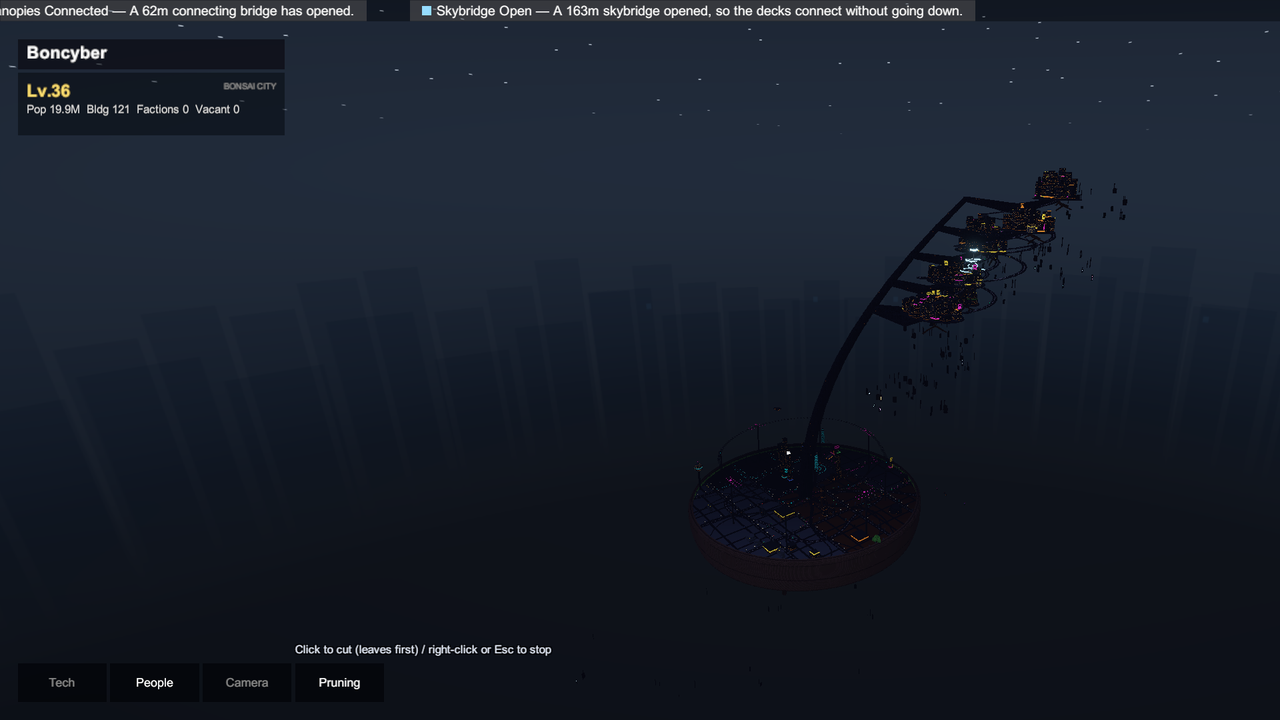
- Needs the unlock “The Art of Pruning”. Open the “Pruning” tab and left-click to cut (the leaves go first); right-click or press Esc to stop. See below.
- Unlocks
- The “Tech” tab opens the unlock tree. Esc closes it.
- Renaming the town
- “City name” in Settings.
SCREENSHOT COMING
A selected resident
A screenshot of a resident with their traits, activity and the Bless button will go here.
Pruning
- Cutting
- “Click to cut (leaves first) / right-click or Esc to stop”. The piece you cut falls, and new buds sprout from the cut and grow out again (“Pruned. New buds grow once recovery finishes”). Buildings on a cut branch fall with it.
- Not yet unlocked
- “Locked — unlock The Art of Pruning in the Tech tab”.
- Pot and rocks
- “The pot and the rocks cannot be pruned”.
- Recovering
- A fresh cut needs time before you can cut there again: “Recovering — this part cannot be cut again yet”.
“Cutting a branch that holds homes drops the homes too. Check what sits on a branch before pruning.”
The unlock tree
“Unlocked nodes stay unlocked in every run; the end-of-run score carries over as funds.” Open the tree from the “Tech” tab. Each node reads “Owned”, “Needs prereq”, “Available” or “Too costly”, with your “Funds” at the top. The tree cannot be reset.
SCREENSHOT COMING
The unlock tree
A screenshot of the unlock tree will go here.
Vehicles
- Ground Cars
- “Ground cars start running on the roads”.
- Fast Vehicles
- “More cars, and they move faster”. Needs Ground Cars.
- Flying Cars
- “Flying cars cross the sky overhead”. Needs Fast Vehicles.
Economy
- Commerce Expansion
- “City income +50%”.
- Automated Factory
- “City income +50% again”. Needs Commerce Expansion.
Construction
- Construction Drones
- “Faster construction, +1 concurrent site”.
- High-Rise Engineering
- Needs Construction Drones.
Disaster prevention
- Lightning Rod Grid
- “Lightning no longer destroys buildings”.
- Weather Shield
- “Bad weather lasts half as long”. Needs Lightning Rod Grid.
- Quarantine Center
- “Infection waves are halved”.
Defense
- Riot Gear
- “Cordons push hostiles back”.
- Sweeping Laser Grid
- “The city fires on ground hostiles by itself”. Needs Riot Gear.
- Flak Net
- “Wears down descending hostiles before they land”. Needs Sweeping Laser Grid.
- Orbital Watch
- “Spot falling objects sooner (longer grace period)”.
- Interceptor Missiles
- “Shoot falling objects down in midair (debris still falls)”. Needs Orbital Watch.
Society
- Medical Center
- “Lost residents return twice as fast”.
- Public Security Bureau
- “All-out gang war destroys one fewer building”.
Bonsai
- The Art of Pruning
- “Ruins are likelier to remain as jin and shari (18% to 35%); unlocks the manual scissors”.
Camera
- Observer Drone
- “Unlocks cinematic mode (C key)”.
- Tracking Lens
- “Adds resident-follow, alley and vehicle views”. Needs Observer Drone.
- Photo Mode
- “Freeze time and shoot with the UI hidden”. Needs Observer Drone.
- Event Broadcast
- “Cinematic mode jumps to major events on its own”. Needs Observer Drone.
Legacy
- Seed Funding
- “Every later run starts with +500 funds”.
- Observer’s Blessing
- “Avoid a wipe once per run”. Needs Seed Funding.
- Corporate Charter
- “Megacorps move in sooner”.
- Warded Alleys
- “The cult recruits half as fast”.
Camera tools
Each of these needs an unlock from the Camera branch of the unlock tree.
- Cinematic mode
- “Start cinematic (C)” on the Camera tab, or press C. The camera films the town by itself from one viewpoint after another: “Cinematic mode — press C to exit”. Until Observer Drone is unlocked, the button reads “Cinematic (drone required)”.
- Tracking Lens
- Adds views that follow residents, run down alleys and ride along with vehicles.
- Event Broadcast
- Cinematic mode cuts to major events on its own.
- Photo mode
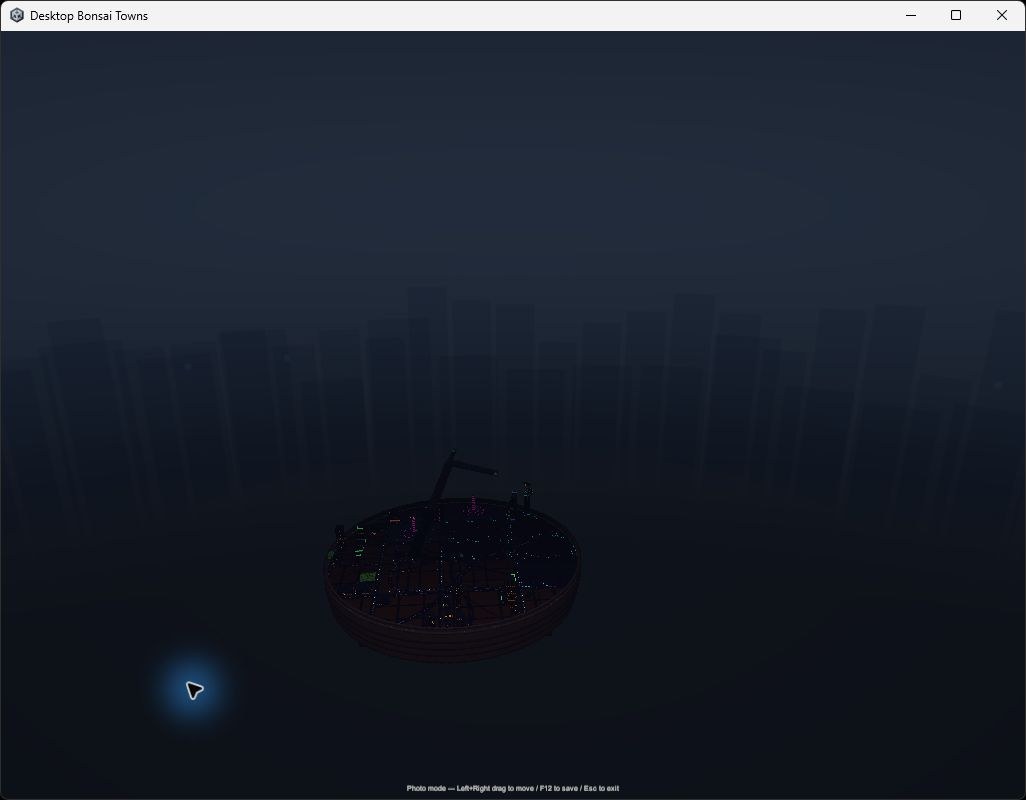
- “Photo mode” on the Camera tab. Time stops and the interface disappears: “Photo mode — Left+Right drag to move / F12 to save / Esc to exit”. Hold both mouse buttons and drag to move. F12 saves the picture as a PNG.
Desktop mode
Desktop mode takes away the background and the interface and leaves only the bonsai on top of your desktop, so the town can grow beside your work.
SCREENSHOT COMING
Desktop mode
A screenshot of the bonsai sitting on a real desktop will go here.
- Switching on
- Click the “Desktop” icon at the top right once a town has started. From full screen, the game turns into a window first. The town keeps the size it has on screen, so size the window before you switch.
- Clicks
- Clicks on empty space reach the app behind: “Mouse input passes through to the desktop behind”. Clicking the town brings the game window to the front.
- Moving it
- Press on the town (the pot counts) and drag to move the whole window. The camera stays as it is.
- Pot buttons
- Point at the town and two buttons appear beside the pot: return (the same icon as Desktop) and auto-rotate. Auto-rotate shares its settings with the Camera tab and keeps them after you leave desktop mode.
- Coming back
- Press Ctrl+Alt+B, which works even while you are in another app, or use the on-screen icon.
- Other windows
- The bonsai is not pinned above other windows. Bring another window forward and it covers the town.
If it does not switch
- No town yet
- “Start a bonsai before switching to desktop mode”.
- Not 64-bit Windows
- “Available on 64-bit Windows”.
- Not Direct3D 11
- “Start the game with Direct3D 11”.
- Shortcut taken
- “Cannot register Ctrl+Alt+B (another app has it)” means another app already uses the shortcut.
When a run ends
A run ends when the tree is finished or when the town falls. Either way, part of the score carries over as funds for the next run.
A finished tree
- Result
- “Completed - Result” lists the “Tree”, “Height”, “Width”, pot, “Population”, “Buildings completed”, “Time (in-game)”, “Calamities” (disasters and invasions), “Collapses”, “Prunes”, “Projected carry-over” and “Income after completion”, with a score.
- Carry-over
- “Only the projected carry-over goes to the next run.”
- Replant
- “Replant” starts the next tree. It asks first, because “Replanting discards the current city. This cannot be undone.”
SCREENSHOT COMING
The result screen
A screenshot of the English result screen will go here.
A fallen town
- How it falls
- A town falls when it runs out of homes. Once no home has stood for a while, newcomers stop coming and the city ends.
- The record
- The title reads “(town name) — Collapsed”, under an “Epitaph”. Then come “Days survived”, “Peak population”, “Buildings raised”, “Highest point”, “Score for this city” and “Funds carried over”.
- City record
- “Fatal blow” names what brought the town down, for example “Branches lost their support and fell, taking the homes with them”. “Final days” tells how its last days went.
- Observer’s note
- A hint for the next run, such as which unlock to get.
- Buttons
- “Start over” and “Unlock tree”.
SCREENSHOT COMING
The end of a town
A screenshot of the English record of a fallen town will go here.
The bonsai shelf
- List
- Every finished tree is recorded here (up to 200). Twenty of them can be opened in 3D with “View in 3D”; “Back to my city” returns to your town. Before your first tree: “No finished trees yet. A tree grown to completion is recorded here.”
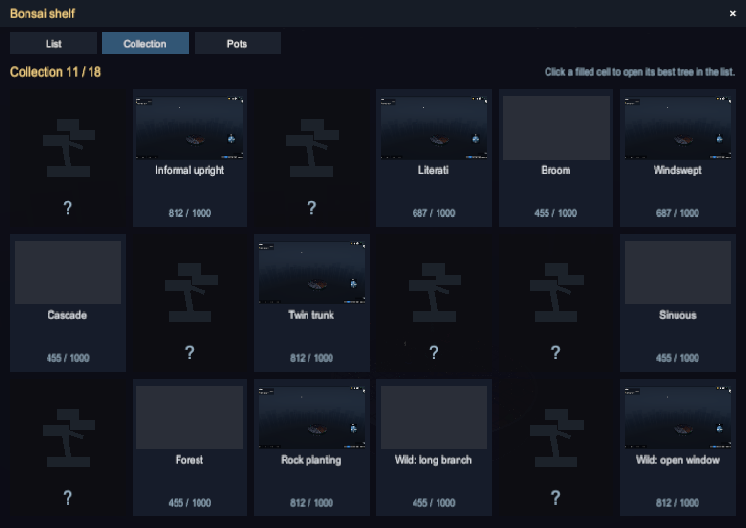
- Collection
- One cell for each tree shape and Wild form, with your progress at the top (“Collection 11 / 18”). Empty cells show “?”.
- Pots
- The pots of the Cyberpunk world: Red Clay Round Pot (yours from the start), Obsidian Neon Pot, Carbon Fiber Pot, Chrome Floating-Ring Pot and Scrap Circuit Chassis. They change only how the tree looks. Each one opens with carried-over funds or after a number of completed trees.
The trophy at the top right opens the “Achievements”. These are the game’s own in-game achievements, not Steam achievements. They are grouped into Sky layers, Height, Population, Survival, Construction and Incidents.
In-game achievements
- A Foothold in the Sky
- City of Three Tiers
- Reaching the Treetops
- Through the Cloud Base
- Looking Down on the Pot
- City of a Million
- A Billion in a Pot
- A Trillion in a Pot
- One Week
- One Month
- One Hundred Buildings
- Three Hundred Buildings
- Through the Invasion
- After the Ritual
- Jin and Shari
- The Finished Form
Settings
The gear at the top right opens “Settings”. It also shows the state of your “Quick save” and your “Permanent unlocks” (kept across runs).
SCREENSHOT COMING
Settings
A screenshot of the Settings panel will go here.
- Volume
- “Master”, “Music” and “Sound effects”.
- Display
- The resolution and “Mode: Windowed / Full screen window”. “Apply” keeps them for the next launch too. They cannot be changed in desktop mode.
- Language
- 日本語, English or 简体中文.
- City name
- Rename the town.
- Save
- “Delete the quick save”. Press it again to confirm (“Press again to delete”).
- Back to the start screen
- “The current city is saved first — pick Continue on the start screen to resume it”.
- Auto-start
- “Auto-start on title screen: On / Off”.
- Quit game
- Saves and closes the game.
Questions
- Does the town grow while the game is closed?
- No. It grows only while the game is running, including when the window is behind other apps.
- Can I speed it up?
- No. There is no fast-forward.
- Can I choose the shape of the tree?
- No. Each run picks one by itself, and shapes you have not collected yet come first.
- Are there other worlds?
- Cyberpunk is the only world for now. More worlds with other themes are planned.
- Can I play with a controller?
- No. The game is played with a mouse and keyboard.